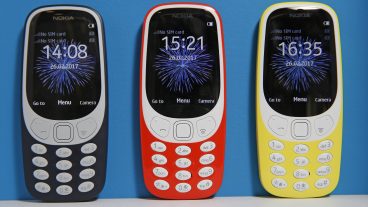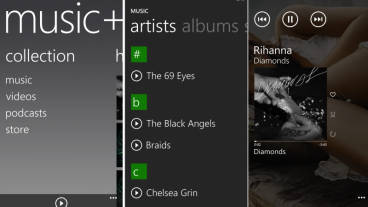

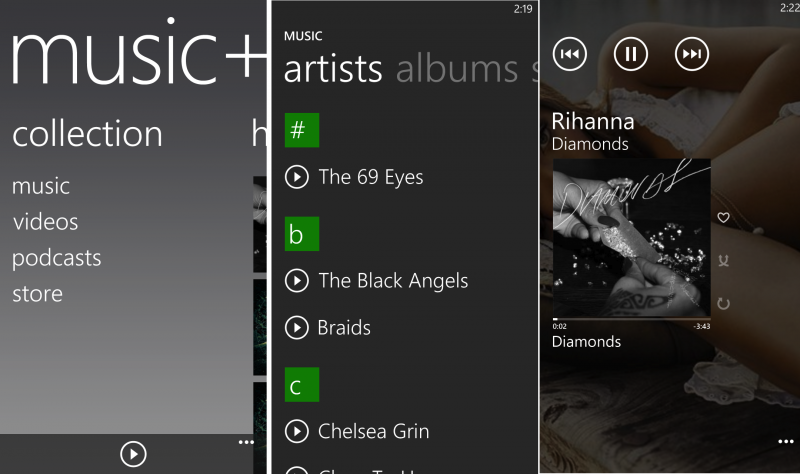
Windows Phone 8 was a thing to break Android and iOS domination. For a certain amount of time it actually did. I bought myself a Nokia Lumia 520 back then and it was cool looking phone. It lacked few obvious features like front camera and flash but everybody liked it. Few of my relatives and friends also bought Lumia phones back then. Windows Phones were getting there but the app store had very few useful apps. The apps that were very popular in Apple Store and Play Store haven’t got their way back to windows phone. Google didn’t make any app for Windows Phone. But, Windows Phone was very beautiful when I first bought it. It had beautiful tiles with useful information. Every animation was fast and loading time was too little. Interface was bare minimum and there was no notification shade. It made the phone feel fast. It actually was fast. Over the time Microsoft sent updates and I always updated my phone whenever I got one. Windows Phone was getting new features with every update. It gradually became slow without me noticing. When the music app got changed I got disappointed. Nokia became all Microsoft. The passion got lost somehow. The Windows Phone 8 was made with love. The love got lost. Phone got slower and I moved to Android. I haven’t got back to my old phone for a while. I waited for Windows Phone 10 update but it didn’t come to my old little 520. Recently my cousin who is still using Windows Phone told me he’s no more be able to use Facebook messenger on his phone because his phone got 512MB RAM. Windows Phone hasn’t been the focus anymore and Microsoft became busy building apps for iOS, Android! I missed my old Windows Phone. After 2 years I checked my 520 if it worked. It did. I remembered Windows Phone 8. I checked if it was possible to get the old music player. Getting online I found solution. I followed simple steps:
1. Download Mobile Device Recovery tool from here.(https://support.microsoft.com/en-us/help/12379/windows-10-mobile-device-recovery-tool-faq)
2. Install it and remember the location where you install.
3. Go to http://lumiafirmware.com/ and look for your device model.
4. Download the .ffu file from the image that you select. (top most are the oldest)
5. Move the .ffu file in a new folder named Package at the windows desktop.
6. Rename the .ffu file to FullFlashUpdate.ffu
7. Connect your phone and backup your data.
8. Open CMD in admin mode and copy-paste from following: (location of recovery tool)
cd "%ProgramFiles(x86)%\Microsoft Care Suite\Windows Device Recovery Tool"
9. Then copy paste the following:
thor2 -mode uefiflash -ffufile “%HomePath%\Desktop\Package\FullFlashUpdate.ffu” -do_full_nvi_update -do_factory_reset -reboot
10. Your phone will flash and restart.
11. If you are stuck at boot: Power off the phone.
12. Press power button and press and hold volume down.
13. You’ll see flashing “!” sign.
14. Press the Volume Up button, then Volume Down, then the Power button, then Volume Down again.
15. Your Nokia Windows phone will take several minutes to reset, restore its original factory settings, and reboot.
Thus, I got my old Windows Phone 8 back. And oh! Don’t forget to turn off auto update at the beginning!!

আমি Ahmed Faisal। বিশ্বের সর্ববৃহৎ বিজ্ঞান ও প্রযুক্তির সৌশল নেটওয়ার্ক - টেকটিউনস এ আমি 8 বছর 5 মাস যাবৎ যুক্ত আছি। টেকটিউনস আমি এ পর্যন্ত 1 টি টিউন ও 0 টি টিউমেন্ট করেছি। টেকটিউনসে আমার 2 ফলোয়ার আছে এবং আমি টেকটিউনসে 0 টিউনারকে ফলো করি।